

How to Detect Media Offline Errors in Video Exports | Video QC Guide
The Problem
What Does “Media Offline” Mean in a Video?
“Media offline” errors occur when your video editing software cannot locate the original source files during export.
Instead of rendering the correct footage, the export may contain:
Red error screens
Missing clips
Placeholder frames
Black or corrupted frames
These errors are especially common in tools like Premiere Pro and DaVinci Resolve when files are moved, renamed, or disconnected.

Why It Happens
Why Media Offline Errors Appear After Export
Media offline issues often happen unexpectedly, even in completed projects.
Common causes include:
Missing or moved source files
Broken file paths
External drives not connected
Proxy / relink issues
Render or export glitches
Sometimes everything appears fine in the timeline, but the final export still contains offline frames.
Why It’s Dangerous
Why Media Offline Errors Are Easy to Miss
Media offline errors can be surprisingly easy to overlook:
They may only appear for a few frames
Editors may not watch the entire export
Long videos are difficult to review manually
Errors can occur in less noticeable sections
Delivering a video with media offline frames can severely damage trust with clients.
Manual Detection
How to Check for Media Offline Frames Manually
Editors often try to catch these issues manually by:
Watching the full export
Scrubbing through the timeline
Checking render warnings
Reviewing project relink status
However, manual checks are:
Time-consuming
Inconsistent
Prone to human error
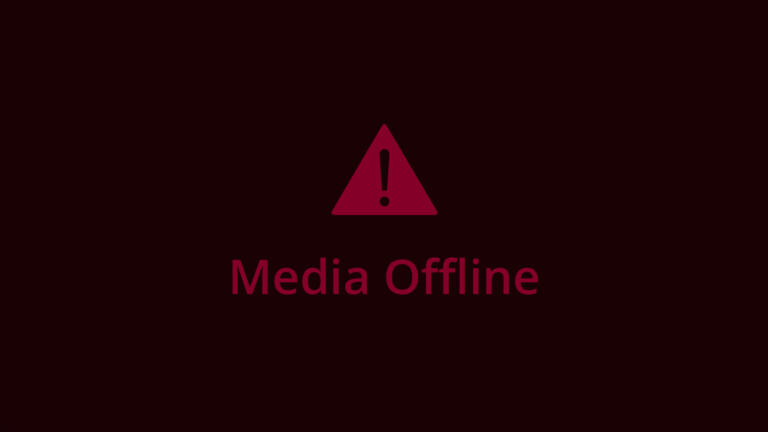
Automatic Detection
Automatically Detect Media Offline Frames in Video
The most reliable way to detect media offline errors is to use automated video QC software.
Final Export Checker scans your exported video frame by frame and detects frames that match common media offline patterns.
The software automatically:
Identifies media offline error frames
Captures thumbnails of each issue
Displays exact timestamps
Highlights problems in a visual timeline
This allows you to quickly locate and fix errors before delivery.

How It Works
How Final Export Checker Detects Media Offline Errors
1️⃣ Import your exported video
2️⃣ Start the automated scan
3️⃣ The software analyzes every frame
4️⃣ Media offline frames are detected and flagged
5️⃣ Jump directly to the issue using timestamps
Why Video QC Matters
Why You Should Always Run a Video QC Check
Media offline errors are one of the most damaging export issues.
Running a quick video QC scan before delivery helps you:
Catch missing media instantly
Avoid embarrassing delivery mistakes
Save time on revisions
Maintain professional quality
Detect Media Offline Errors Automatically
Final Export Checker helps you detect media offline frames, black frames, audio drops and other export issues automatically.
Stop relying on manual checks.
Download the free trial and scan your next export in seconds.